World
Topics from outside of this forum. Views and opinions represented here may not reflect those of this forum and its members.
A world of content at your fingertips…
Think of this as your global discovery feed. It brings together interesting discussions from across the web and other communities, all in one place.
While you can browse what's trending now, the best way to use this feed is to make it your own. By creating an account, you can follow specific creators and topics to filter out the noise and see only what matters to you.
Ready to dive in? Create an account to start following others, get notified when people reply to you, and save your favorite finds.
Register Login-
OS: Linux Mint 22.3, updated to latest packages (installed 10 minutes ago).
Intel NUC:
- CPU i3-6100
- 8gb RAM
- 210GB of free hard drive space
I'm trying to do a native install with this command:
curl -fsSL https://raw.githubusercontent.com/maziggy/bambuddy/main/install/install.sh -o install.sh && chmod +x install.sh && ./install.sh
I get this error:
curl: (23) Failure writing output to destination
So I tried the same command with sudo, and got this error:
chmod: changing permissions of 'install.sh': Operation not permitted
I'm at the very edge of my linux trouble-shooting abilities.
-
This is a very interesting project, so I took my Raspberry Pi 3B (1Gb memory) and tried to install Bambuddy. But it keeps failing. I tried Debian 13 first, but that failed twice, so I tried Ubuntu (both burned with the Raspberry Pi image tool) but that fails too. So I'm stumped now. What can I do? Is the Pi3 not good enough? Do I really need one with more memory?
This is the error:
Run `npm audit` for details.
npm notice
npm notice New major version of npm available! 10.9.7 -> 11.13.0
npm notice Changelog: https://github.com/npm/cli/releases/tag/v11.13.0
npm notice To update run: npm install -g npm@11.13.0
npm notice

> frontend@0.0.0 build
> tsc -b && vite build


<--- Last few GCs --->

[4726:0xffffb8440000]   146637 ms: Scavenge 446.0 (458.9) -> 444.1 (458.9) MB, pooled: 0 MB, 3.19 / 0.00 ms  (average mu = 0.835, current mu = 0.860) allocation failure;
[4726:0xffffb8440000]   146702 ms: Scavenge 446.0 (458.9) -> 444.1 (462.9) MB, pooled: 0 MB, 6.59 / 0.00 ms  (average mu = 0.835, current mu = 0.860) allocation failure;


<--- JS stacktrace --->

FATAL ERROR: Reached heap limit Allocation failed - JavaScript heap out of memory
----- Native stack trace -----

 1: 0xe15218 node::OOMErrorHandler(char const*, v8::OOMDetails const&) [node]
 2: 0x11ab5cc v8::Utils::ReportOOMFailure(v8::internal::Isolate*, char const*, v8::OOMDetails const&) [node]
 3: 0x11ab77c v8::internal::V8::FatalProcessOutOfMemory(v8::internal::Isolate*, char const*, v8::OOMDetails const&) [node]
 4: 0x13d137c  [node]
 5: 0x13e92f0 v8::internal::Heap::CollectGarbage(v8::internal::AllocationSpace, v8::internal::GarbageCollectionReason, v8::GCCallbackFlags) [node]
 6: 0x13bfc78 v8::internal::HeapAllocator::AllocateRawWithLightRetrySlowPath(int, v8::internal::AllocationType, v8::internal::AllocationOrigin, v8::internal::AllocationAlignment) [node]
 7: 0x13c0ab0 v8::internal::HeapAllocator::AllocateRawWithRetryOrFailSlowPath(int, v8::internal::AllocationType, v8::internal::AllocationOrigin, v8::internal::AllocationAlignment) [node]
 8: 0x139b9b0 v8::internal::Factory::NewFillerObject(int, v8::internal::AllocationAlignment, v8::internal::AllocationType, v8::internal::AllocationOrigin) [node]
 9: 0x17b724c v8::internal::Runtime_AllocateInYoungGeneration(int, unsigned long*, v8::internal::Isolate*) [node]
10: 0x1cc8cd4  [node]
Aborted (core dumped)
I included a bit more, since it also complains about the npm version. I don't understand that, because I think the Bambuddy installer is the one that installed that. So maybe it should pick the @latest build.
Can anybody tell me what's wrong and how to fix this, if it can be fixed...
-
Hi!
Before I open a bug report, I have a question regarding the connection between Bambuddy and Spoolman.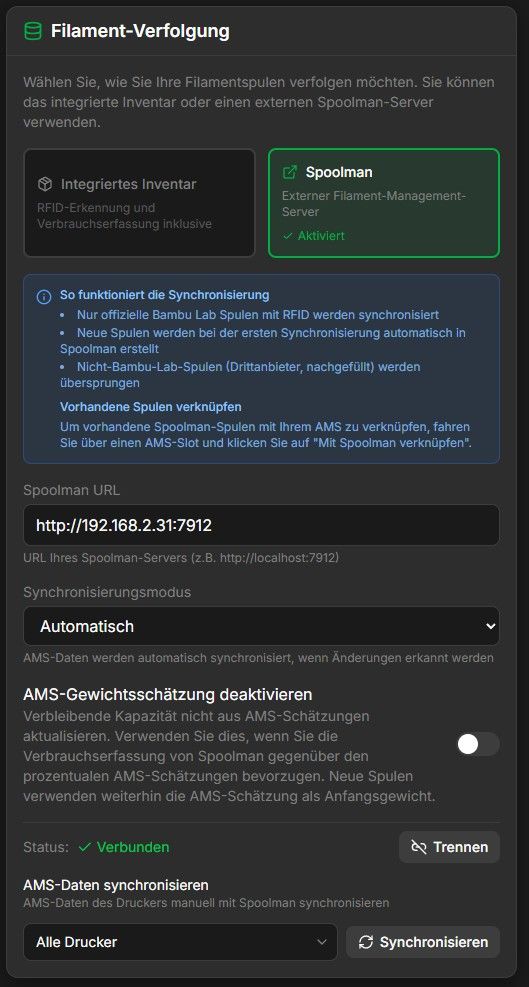
I set up Bambuddy and Spoolman as Docker container. Testet Bambuddy with sqlite and postgres18 backend and both have the same problem.
I added non Bambu Lab Spools to Spoolman and connected these spools with the ams slot.
The slot is connected with a spool with spoolman.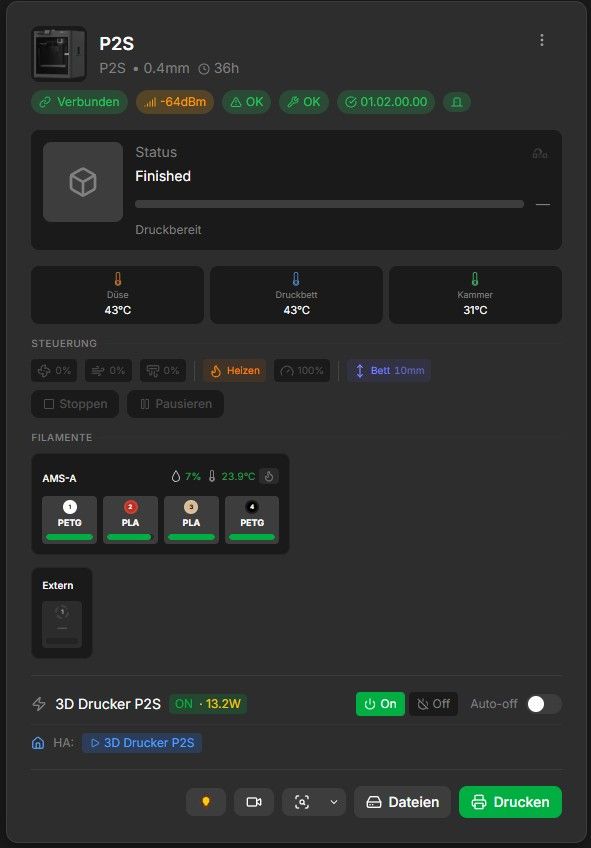
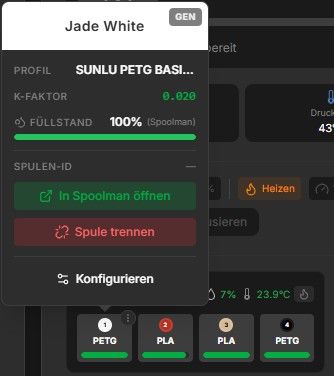
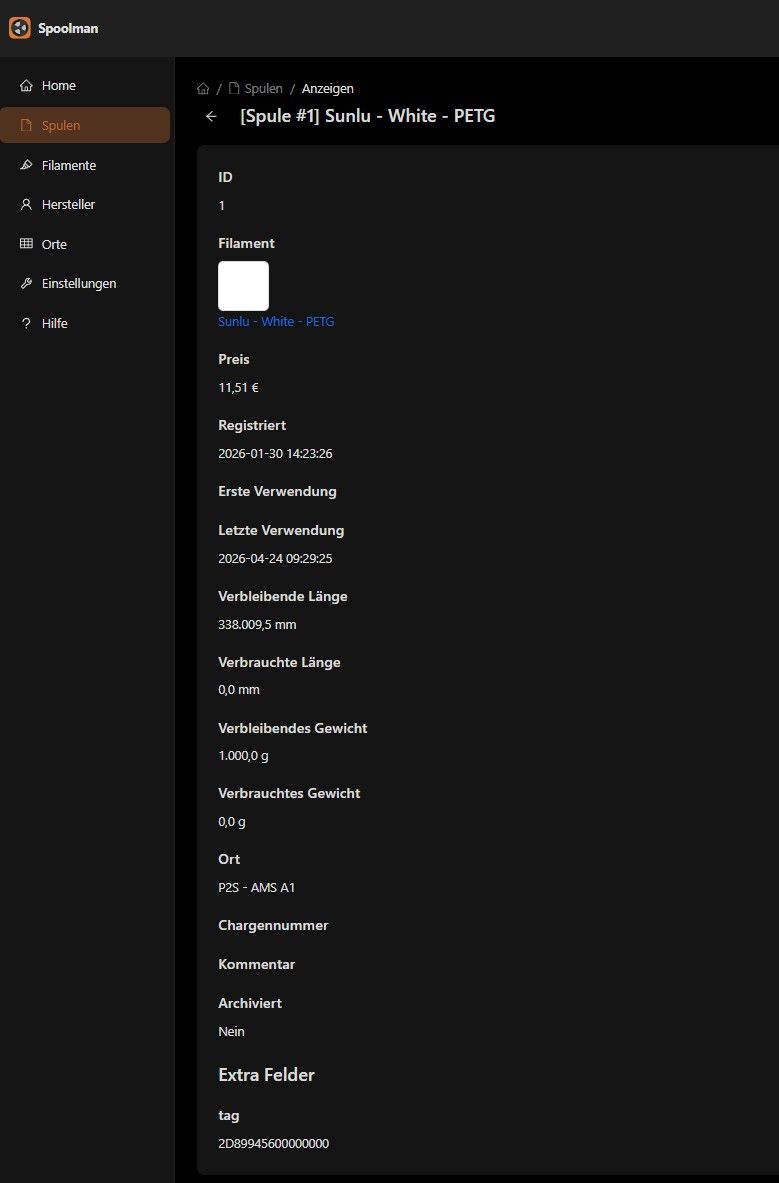
I start a print and then a message came up with the information, that the spool isn't assigned and on the end of the print spoolman isn't updateing the new weight.
Is spoolman not updating the non Bambu Lab spools, or am I misunderstanding something?
Regards,
Marcus
-
Bambuddy integrates with a wide ecosystem of tools. Here's an overview of the most popular integrations.
Spoolman
Spoolman is a standalone filament manager. Bambuddy can sync with it:
- Bi-directional spool inventory sync
- Per-filament usage tracking
- Fill level display in Bambuddy UI
Setup: Settings > Integrations > Enter your Spoolman URL
MQTT (Home Assistant, Node-RED)
Bambuddy publishes printer telemetry to an MQTT broker, making it easy to build automations:
- Printer status (idle, printing, paused, error)
- Current print progress, temperature, speed
- Filament usage, AMS status
- Print completion events
Setup: Settings > MQTT > Enter your broker address
Example HA automation: Turn on lights when a print finishes, send a mobile notification, or trigger a camera snapshot.
Prometheus Metrics
Export printer telemetry for Grafana dashboards:
- Print time, filament usage, temperatures
- Queue status, print success rates
- Per-printer and per-filament breakdowns
Endpoint:
http://your-bambuddy:5000/metricsSmart Plugs
Control printer power automatically:
- Tasmota — Direct HTTP API control
- Home Assistant — Control any HA switch entity
- MQTT — Zigbee2MQTT, Shelly, or any MQTT-controlled plug
Features:
- Auto power-on before scheduled prints
- Auto power-off after bed cooldown
- Energy consumption tracking (per-print kWh and cost)
OrcaSlicer / Bambu Studio Presets
Import filament presets from your slicer (
.orca_filament,.bbscfg,.bbsflmt,.zip,.json) without needing Bambu Cloud.
For detailed setup instructions, check the Documentation.
-
-
Hi - love a good forum... back to the good old days, I hope it gains traction!
Bambuddy is clearly Bambu dedicated, and ultimately the strongest possible Bambu support is the goal.... buuuuuuut....
Are there any plans to support other brands of printers?
I have 7x Bambus and should be up to 10x soon, but I also have some Centauri Carbon 1's, and it would be amazing to have even a limited support for them (push a sliced file for printing).
And yes, I would contribute financially, in advance, to making that happen.
Fully understand if non-Bambu isn't part of the playbook at all though.
Tony in New Zealand.
P.S. X2D in the list already?!?! Great work!!!!
-
We'd love to see how everyone is using Bambuddy!
Post a screenshot or photo of:
- Your Bambuddy dashboard
- Your printer setup / print farm
- Your favorite prints managed through Bambuddy
- Creative uses of the scheduling, automation, or notification features
Bonus points for:
- Multi-printer setups
- Raspberry Pi deployments
- Custom Grafana dashboards using Bambuddy's Prometheus metrics
- Smart plug automation setups
Don't be shy — whether you have one A1 Mini or a farm of X1 Carbons, we want to see it!
[image: de187b99-e379-4e98-912f-b0208d754421-image.jpeg] A modest printing business here in my spare time, doing around 10-20 items a day, and steadily rising as I design new products, and my customers keep coming back for more. Definitely need to integrate some smart plugs, I have them all here, and also make better use of scheduling when I'm not under production pressure, as the workshop is next to the master bedroom, so scheduling will be good to get prints start at around midnight, leaving 9pm to midnight as quiet hours, so we can go to bed without the noise while we are winding down (doesn't bother me after i fall asleep). -
 Bambuddy Community has a new home — and Discord isn't going anywhere.
Some of you noticed I was considering shutting down Discord. After hearing your feedback, I've found a better path: both can coexist.
We've launched forum.bambuddy.cool — a dedicated community site with a forum and real-time chat, all in one place.
Here's how it works now
 Forum
ForumIn-depth discussions, guides, support questions. Everything is searchable and persistent — no more answers lost in a scrolling chat.
 Chat
ChatThe same real-time conversation you're used to, but accessible from both Discord and the forum. Key channels are synced between the two, so you won't miss anything
regardless of where you hang out. GitHub
Bug reports and feature requests still go to github.com/maziggy/bambuddy. Not the forum, not Discord.
What does this mean for you?
- Nothing changes if you want to stay on Discord. Your messages sync to the forum chat automatically.
- If you prefer a web experience, head to forum.bambuddy.cool — you can log in with your Discord account.
- For longer discussions and support, post on the forum. That way answers don't scroll away and actually help the next person with the same question.
The goal is simple: one community, your choice of tool.
See you there — or right here. Either way works.
— Martin
-
Bambuddy v0.2.3
 Upgrade Notes — Read Before Updating
The in-app Update button does not reliably perform the one-time migration from 0.2.2.x to 0.2.3. Please do this one upgrade from the command line using one of the paths below. Once you're on 0.2.3, the in-app Update button works normally again for all future releases. Full guide: UPDATING.md.
Docker
First make sure your
docker-compose.ymlimage:line points at:latestor:0.2.3— if it pins an older tag (e.g.:0.2.2.2),docker compose pullwill just re-fetch that tag. If your compose file is older than 0.2.3, also refresh it from the repo; recent releases addedcap_add: NET_BIND_SERVICE, extra virtual-printer ports for bridge mode, and an optional PostgreSQL block.docker compose pull docker compose up -dNative install (
install.shor manualgit clone)The bundled
update.shnow stops the service, snapshots the database via the built-in backup API, fast-forwards toorigin/main, installs Python dependencies, rebuilds the frontend, restarts the service, and rolls back automatically if any step fails.sudo /opt/bambuddy/install/update.shInstalled from a GitHub ZIP/tarball? Those installs have no
.gitdirectory and cannot be upgraded in place. See the UPDATING.md recovery procedure for backup-and-reinstall steps.Take a backup first.
update.shtakes one automatically; Docker and fully-manual paths do not. Settings → Backup → Create Backup produces a full ZIP.
Highlights
0.2.3 is the largest Bambuddy release yet — the cumulative result of four beta cycles (b1 → b4) and post-b3 work on
dev. Big-ticket additions since 0.2.2.2: Two-Factor Authentication and OIDC/SSO, LDAP / Active Directory, Obico AI print-failure detection, optional PostgreSQL database support, scheduled local backups, X2D printer support, and the first official SpoolBuddy beta — a 7" touchscreen kiosk with NFC tag writing and scale-based spool tracking. The core app gains shortest-job-first queue scheduling, auto-print G-code injection for bed-clearing systems, printer search and filters, direct printing from the project view, firmware rollback, and a lot of polish.New Features
- Two-Factor Authentication (TOTP, Email OTP) and OIDC/SSO (#933) — Full 2FA implementation with admin UI. Supports TOTP authenticator apps and email-delivered OTP. OIDC/SSO works alongside local accounts and LDAP. Contributed by @netscout2001.
- Obico AI Print-Failure Detection (#172) — Self-hosted Obico ML API integration for spaghetti/failure detection across your whole printer fleet. Captures snapshots locally and serves them via nonce URLs so the ML API can reach them without exposing auth tokens.
- X2D Printer Support (#988, #989) — Full support for the Bambu Lab X2D including dual-nozzle, camera, K-profile, and maintenance tracking. Seeded by @legend813's #989 (rod-type classification and registry scaffolding) with dual-nozzle / K-profile /
is_h2dgaps filled in on top. Thanks to @krautech for the report and debug bundle. - Firmware List with Rollback (#568) — Settings → Firmware now lists every announced firmware version with a usable / unavailable indicator and supports rolling back to an older version.
- Build-Plate Z-Jog Control (#791) — Jog the build plate directly from the printer card.
- Airduct Mode + Status Badges on Printer Card — Airduct mode control and live status badges on each printer card, with a force-refresh button.
- Collapsible Folders for Printer Filters (#968) — Collapse / expand folder groups in the printers sidebar. Contributed by @cadtoolbox.
- China Region for Cloud Token-Based Login (#1013) — Token-based login now supports Bambu's China region. Contributed by @Minidoracat.
- Traditional Chinese (zh-TW) Locale (#1017) — Full zh-TW translation and a sync of 74 missing keys into zh-CN. Contributed by @Minidoracat.
- Spoolman Link Modal Shows Vendor Name (#958) — Vendor name displayed alongside filament in the link modal. Contributed by @shrunbr.
- Auto-Link Existing Accounts Toggle for OIDC (#973) — Optional setting to auto-link an OIDC login to an existing local account by matching email address. Contributed by @netscout2001.
- SpoolBuddy Device Control Buttons in Settings Card — Restart daemon, restart browser, reboot, and shutdown controls for each registered SpoolBuddy device from the Settings card.
- Expanded Settings Search — Module-level registry makes Settings search cover every sub-page, not just the top-level nodes.
- Support Bundle Includes Settings + SpoolBuddy Devices — Support bundles now contain all settings (with sensitive values redacted) and the list of registered SpoolBuddy devices, so bug reports have more context out of the box.
- Scheduled Local Backups (#884) — Settings → Backup now includes a "Scheduled Backups" card that automatically creates complete backup snapshots (database + all data directories) on an hourly, daily, or weekly schedule with configurable time-of-day and retention count. Backups are written as ZIP files to a configurable output directory (defaults to DATA_DIR/backups/), which Docker users can mount as a volume to their NAS or external storage. Each backup in the list can be downloaded, restored directly from the UI, or deleted individually. The manual backup download endpoint has also been optimized to stream directly from disk instead of loading the entire ZIP into memory. Works with both SQLite and PostgreSQL. Fully localized across all 7 UI languages.
- Optional PostgreSQL Database Support — Bambuddy can now use an external PostgreSQL database instead of the built-in SQLite. Set the DATABASE_URL environment variable to connect to Postgres. SQLite remains the default. All features work with both backends including full-text archive search, backup/restore, health diagnostics, and cross-database restore (import a SQLite backup into PostgreSQL with automatic type conversion and FK handling).
- LDAP Authentication (#794) — Users can now authenticate against an LDAP / Active Directory server. Configure the LDAP server URL, bind DN, search base, and user filter in Settings → Authentication → LDAP. Supports StartTLS, LDAPS (SSL), and plaintext connections. LDAP groups can be mapped to BamBuddy groups (Administrators, Operators, Viewers) for automatic role assignment. Auto-provisioning creates BamBuddy accounts on first LDAP login. Local admin accounts remain as fallback when the LDAP server is unreachable.
- LDAP Default Fallback Group — Settings → Authentication → LDAP → Advanced now has a "Default group" selector. When an LDAP user authenticates but is not listed in any mapped LDAP group, they are automatically assigned to this fallback group instead of being left without permissions.
- Shortest Job First Queue Scheduling (#879) — New SJF toggle badge on the queue page header. When enabled, the scheduler starts shorter print jobs before longer ones instead of FIFO order. A starvation guard ensures long jobs that get skipped once are protected from being skipped again. Print duration is cached on queue items at creation time from the 3MF metadata.
- Auto-Print G-code Injection (#422) — Configure custom start and end G-code snippets per printer model in Settings (Workflow tab) for bed-clearing systems like Farmloop, SwapMod, AutoClear, and Printflow 3D. When adding a print to the queue, enable "Inject G-code" to have the scheduler inject the configured snippets into the 3MF before uploading. The original file is never modified — injection creates a temporary copy for upload only.
- Print Files Directly from Project View (#930) — The project detail page now lists printable files from every linked library folder inline, with Print Now and Add to Queue action buttons on each sliced file. Prints triggered from the project view are automatically associated with the originating project. Contributed by @legend813.
- Printers Page Search and Filters (#852) — The Printers page now has a live search bar and two filter dropdowns (status and location). Search matches printer name, model, location, and serial number. The status filter is reactive to WebSocket status updates. Contributed by @legend813.
- Queue Timeline View (#823) — Production schedule view showing estimated print completion times, grouped by hour, with live progress bars. Filter by All/Printing/Queued and navigate between days.
- Staggered Batch Start for Multi-Printer Jobs (#752) — Stagger print starts across multiple printers to avoid simultaneous bed heating power spikes. Configure group size and interval in the Print/Schedule dialog or set defaults in Settings → Queue.
- Plate-Clear Confirmation Setting (#752) — New toggle in Settings → Queue to skip plate-clear confirmation for farm workflows where plates are verified physically.
- Per-User Statistics Filtering (#730) — Admins can filter the Statistics page by user to see individual prints, filament usage, and costs.
- Bulk Printer Actions (#825) — Select multiple printer cards and apply bulk Stop, Pause, Resume, Clear Notifications, or Clear Bed. Select by state or location.
- Prefer Lowest Remaining Filament (#805) — Optional setting to prefer AMS spools with the least remaining filament during auto-matching, helping consume partial spools first.
- REST/Webhook Smart Plug Type (#472) — New generic HTTP smart plug type for openHAB, ioBroker, FHEM, Node-RED, etc. Configure ON/OFF URLs, methods, headers, and optional status polling.
- Configurable Default Print Options (#858) — Set default print options (bed levelling, flow calibration, vibration calibration, timelapse, etc.) in Settings → Workflow.
- Batch Print Quantity (#342) — Print multiple copies of a file in one step with a quantity field in the Print/Schedule dialog.
- GitHub Backup: Spool Inventory & Print Archives (#870) — Optional backup of spool inventory and print archive metadata to GitHub.
- External Folder Subfolder Preservation (#890) — Scanning an external folder now mirrors the real directory structure into the file manager folder tree instead of flattening all files into the root.
- SpoolBuddy Quick Menu (#893) — Swipe down from the top of the SpoolBuddy display to open a quick-access control panel. Toggle printer power via smart plugs directly from the display, and manage the system with restart daemon, restart browser, reboot, and shutdown controls.
- SpoolBuddy Device Management Tab — Settings → SpoolBuddy now lists every registered device with live connection status, system details, hardware health flags, and an Unregister button. A yellow warning banner flags likely crash-duplicates when more than one device is registered.
Improved
- Default Plate-Clear Confirmation Off on Fresh Installs — Fresh installs default the Plate-Clear Confirmation setting to off, matching the expectation that farm operators confirm plates physically. Existing installs keep their current preference.
- i18n Parity Gate Extended to All Locales — The CI gate that checks translation drift now inspects every locale file (de, fr, it, ja, pt-BR, zh-CN, zh-TW) with a strict / informational tier split, so translation regressions can't sneak in invisibly.
- SpoolBuddy Auto-Wake on NFC/Scale (#945) — The kiosk display now wakes automatically when a spool is placed on the scale or an NFC tag is scanned, without requiring a touch first. Thanks to @TravisWilder.
- SpoolBuddy Kiosk LCD Now Powers Off on Idle (#937) — The "screen blank timeout" setting now actually powers off the HDMI panel's backlight via swayidle + wlopm instead of just painting a CSS overlay. Thanks to @TravisWilder.
- AMS Drying Support for P2S — Remote AMS drying and queue auto-drying now work on P2S printers with firmware 01.02.00.00 or later.
- AMS Drying Support for H2S (#886) — Remote AMS drying and queue auto-drying now work on H2S printers with firmware 01.02.00.00 or later.
- Assign Spool Modal Filtering (#889) — Improved filtering logic for faster spool selection. Contributed by @Keybored02.
- SpoolBuddy Spool Detail Card (#866) — Improved spool detail card UI with better layout and information density. Contributed by @Keybored02.
- REST Smart Plug: Separate Power/Energy URLs (#472) — REST smart plugs can now use individual URLs for power and energy data with unit multipliers for conversion.
- Standardized Webhook Notification Payloads (#871) — Webhooks now include structured event data fields alongside existing title/message fields for easier automation.
- Database Engine Info on System Page — Shows the active database engine (SQLite or PostgreSQL) and its version.
- Plate Number in Printer View (#881) — Printer cards now show the plate number alongside the filename for multi-plate 3MF prints.
- Printer Name in Queue for Model-Based Jobs (#881) — Queue items assigned to a printer type now show the actual printer name once the scheduler assigns one.
- Developer Mode Detection for A1/P1 Printers — Printers without the fun MQTT field now have developer mode detected via a probe command on reconnect.
- Queue Page Visual Refresh — Compact stats bar, color-coded left borders, collapsible history section, and condensed history rows.
- SpoolBuddy Kiosk Performance Optimizations — Reduced idle CPU from ~3.3 to ~0.9 on Raspberry Pi.
- SpoolBuddy Inventory Page — New kiosk page with spool grid, search, filter pills, and tap-to-detail view.
- SpoolBuddy Auto-Navigate on Tag Scan — Automatically navigates to dashboard and wakes screen when a tag is scanned.
- SpoolBuddy Swipe to Switch Printers — Left/right swipe cycles through online printers on the touchscreen.
- Settings Menu Layout — Improved settings page menu organization.
Fixed
- Virtual Printer Dropping Null-Terminated MQTT Payloads from OrcaSlicer Linux (#927) — OrcaSlicer on Linux appends
\0to MQTT payloads; the parser silently dropped them. Fixed. - OIDC Callback Code/State Too Short (#1024) — Raised
codeandstatemax length from 512 to 2048 to match provider payload sizes. Contributed by @netscout2001. - OIDC Issuer Trailing Slash Mismatch (#995) — Normalised trailing slash on both sides of issuer comparison so Authentik logins succeed. Contributed by @netscout2001.
- OIDC Discovery URL Trailing Slash (#985) — Strip trailing slash from issuer URL before building the discovery URL. Contributed by @netscout2001.
- Archive Reprints Colliding With Originals (#1011) — Unique per-submission IDs prevent reprints from overwriting the original archive entry.
- Obico /p/ Endpoint Incompatibility — Reverted POST-bytes approach; Obico
/p/is GET-only. - Obico Snapshot 401 / "Failed to get image" (#172) — The ML API couldn't fetch snapshots from Bambuddy when auth was enabled. Snapshots are now captured locally and served via nonce URLs so the ML API can reach them without a token.
- Obico Snapshot Capture PIDs Swept by Stream Cleanup (#172) — Stream cleanup no longer kills in-flight Obico snapshot captures.
- Obico POST Image Bytes to ML API (#1003) — Adjusted the ML API integration to POST image bytes directly instead of a callback URL.
- MQTT Zombie Session Detection (#887) — Detects dead-but-reconnected MQTT sessions via
ams_filament_settingresponse tracking and force-closes them with probe-timeout retries. - MQTT Self-Heal on Dispatch Timeout (#936) — Half-broken MQTT sessions self-heal instead of hanging indefinitely.
- SD Card Badge Flap on H2D — Multiple fixes: partial pushes no longer flap the badge, heartbeat bursts no longer flip it red, the badge is now hidden entirely when the printer is offline, and the overall SD badge behaviour was reverted to match pre-regression behaviour.
- SD Card and Door Badges Hidden When Printer Offline — Badges are no longer shown on offline printer cards.
- X2D Missing from Add/Edit Printer Dropdowns (#988) — The Add/Edit Printer modal now lists X2D.
- Speed Level Missing from WebSocket Status (#993) —
speed_levelis now forwarded in the websocket status payload so the printer card updates correctly. - Large 3MF Metadata Lost on FTP Timeout (#972) — Metadata for large 3MF files is now recovered after an FTP timeout instead of being dropped.
- Archive Resume on Subtask ID / Short-Circuit 550 / Cache 3MF (#972) — Archive downloads now resume on
subtask_id, short-circuit when the FTP server returns 550, and cache the 3MF for reuse. - Add/Edit Printer Modal Not Scrollable on Short Viewports — Modal is now scrollable when the viewport is too short.
- Library Prints Not Attributed to User — Prints started from the library are now attributed to the authenticated user instead of the service account.
- Build-Plate Gate Bypassed by Auto Off Power Cycle (#961) — Plate-clear gate is now persisted so Auto Off power cycles can't bypass the queue confirmation.
- Stuck Queue Items on Ignored Start Command — The scheduler now reverts a queued item to
pendingwhen the printer ignores the start command. - CSP Blocking Sidebar iFrames, Service Worker, and Google Fonts — Relaxed Content-Security-Policy rules so same-origin iframes, the service worker, and Google Fonts load correctly.
- X-Frame-Options Blocking Same-Origin iFrames — Relaxed to
SAMEORIGINso same-origin iframes load. - New-Window Camera View Broken with Auth Enabled (#979) — The camera-in-new-window link now works when authentication is enabled.
- SpoolBuddy Kiosk Unusable on First Boot — Full-mode install now makes the kiosk immediately usable on first boot.
- SpoolBuddy API Key Not Auto-Provisioned — Full-mode install now auto-provisions the kiosk API key.
- AMS
dry_sf_reasonNot Surfaced / Filament Not Backfilled (#971) — Expose dryer state reasons and backfill filament assignments on AMS state changes. - Toast Callback Fires After Unmount —
setToastsis now guarded against post-unmount async callbacks. - Backup File Name — Minor fix to the downloaded backup filename format.
- H2C Nozzle Rack Slot Numbering Off When Slot 1's Nozzle Is Mounted (#943) — Rack slots shifted by one position when slot 1's nozzle was picked up into a hotend. The rack base is now hardcoded to match the fixed H2C rack ID layout. Thanks to @netscout2001.
- Energy Snapshot Capture Crashes on PostgreSQL — The hourly energy snapshot loop failed on PostgreSQL because the tz-stripping hook didn't handle nested parameters from insertmanyvalues. Now recursively strips tzinfo at any depth.
- Wrong Filament Color Name on AMS Popup (#857) — Colors outside a hardcoded list showed wrong names. Rewrote the resolver to use the color_catalog table as the single source of truth. Thanks to @lightmaster.
- LDAP Auto-Provisioning Fails on Upgraded SQLite Installs (#794) — First LDAP login on an upgraded SQLite install hit a NOT NULL constraint. Migration now patches sqlite_master directly. Thanks to @DylanBrass.
- Energy Statistics Empty for Date Ranges in Total Consumption Mode (#941) — Added persisted energy start column and hourly snapshot loop for accurate date-range totals. Per-print energy tracking is now restart-resilient. Thanks to @TheMadMike23.
- Virtual Printer "Synchronizing device information" Times Out in Orca (#927) — MQTT command handling silently dropped requests when the slicer's cached serial didn't match. Both directions are now serial-adaptive.
- External Sidebar Link Icon Not Showing (#878) — Custom icons returned 401 because the sidebar img tag didn't use a stream token.
- SJF Toggle Disappears After Clicking (#879) — The toggle was inside the Pending section header which unmounted when the last pending item started. Moved to the page header.
- Project Breadcrumb Shows i18n Key (#931) — Breadcrumb showed the raw translation key instead of translated text. Contributed by @legend813.
- SpoolBuddy Update Fails in Docker — Multiple fixes for ssh failures under arbitrary UIDs. Entire update path is now subprocess-free (uses cryptography + asyncssh). Docker image now bakes .git/HEAD for correct branch detection.
- Camera Stream Reconnect Counter Off-by-One + ffmpeg Log Flood (#925) — Counter could show "6 of 5", and failed ffmpeg spawns logged the full banner.
- LDAP POSIX Primary Group Ignored — Users whose role came from their POSIX primary group landed without permissions.
- Support Bundle Leaks Virtual Printer IP Address — Added
_ipto the sensitive key filter for redaction. - "Build Plate Cleared" Button Unclickable After Second Print (#912) — React Query mutation state from the first confirmation persisted, blocking subsequent clicks.
- Spoolman Location Not Cleared on Spool Removal from AMS (#921) — Auto-sync set locations for new spools but never cleared stale ones, causing double-booked slots.
- Spool Weight Not Updated After Print (#839) — Filament usage tracking failed silently in five scenarios: fallback archives without 3MF, external/VT tray spools, notifications showing "Unknown", auto-archive disabled, and queue/reprint prints with auto-archive disabled. All five paths are now fixed.
- Ghost Jobs From SQLite Lock on Print Completion (#897) — Queue status update could fail silently on SQLite lock, leaving jobs permanently stuck in "printing". Now retries with backoff.
- Multi-Plug Automation Only Working for First Plug (#903) — When multiple smart plugs were assigned to a printer, only the first was automated. All automation paths now control every assigned plug.
- SpoolBuddy Inventory Not Updating on Spool Changes (#905) — Spool CRUD endpoints now broadcast websocket events for instant updates.
- AMS Slot Changes Fail Until Reconnect (#887) — After a keep-alive timeout, paho-mqtt auto-reconnects but silently ignores commands. Added probe timeout with retry and force-close.
- Spool Manager Deducts Double Filament (#880) — Two independent deduction paths ran in the same event loop cycle. AMS weight sync now skips updates while a print session is active.
- File Manager Stale UI After Deleting Folders/Files — Delete endpoints relied on auto-commit after response. Added explicit commit before returning.
- Thumbnails Broken After Backend Restart — Stream tokens lost on restart. Frontend now auto-refreshes failed token-protected image loads.
- SpoolBuddy Kiosk Screen Blanks on Boot — Added consoleblank=0 to kernel cmdline and immediate anti-blank loop.
- Queue Widget Ignores Plate-Clear Setting (#752) — Button showed even when plate-clear confirmation was disabled.
- WebSocket Crash on Printers Without fun Field (#873) — Race condition in developer mode probe caused repeating crashes on A1, P1, X1Plus.
- Filament Hover Card Behind Sidebar (#900) — Hover card z-index conflicted with mobile sidebar.
- Docker Install Script (#915) — Removed deprecated
--bindflag fromdocker_install.sh. - Bed Cooled Notification Never Firing (#872) — Replaced polling-based monitor with event-driven approach.
- Filament Color and Subtype Inconsistencies (#857) — Fixed generic color names, missing Silk+/Tough+ subtypes, and misclassified gradient/dual-color filaments.
- External Spool Print Fails on Printers With AMS (#854, #859) — Fixed use_ams flag and ams_id mapping.
- Wrong Filament Mapping (#851) — Contributed by @behrinml.
- External Folder Scan 500 on 3MF Files (#846) — Crash from raw thumbnail bytes in JSON serialization.
- Archives Capped at 50 Items (#843) — Removed hardcoded limit, added pagination.
- Filament Usage Not Recorded When Auto-Archive Disabled — Tracking now runs before the archive check.
- AMS History Cleanup Crash — Fixed naive/aware datetime mismatch.
- SpoolBuddy NFC Write Fails on NTAG Tags — Multiple PN5180 state machine and CRC fixes for NTAG 213/215/216.
- SpoolBuddy Scale First Reading Always Wrong — NAU7802 ADC stale first reading polluted the moving average.
- Print Fails on Files With Spaces in Name (#824) — Spaces in MQTT url field caused firmware to ignore the print command.
- Virtual Printer Proxy A1 Printing Fails (#757) — Ports 2024-2026 weren't proxied.
- H2D External Spool Print Fails (#797) — "Failed to get AMS mapping table" on H2D external spool prints.
- Spool Assignment on Empty AMS Slots (#784) — Assigning spools to truly empty slots created a stuck state.
- Log Flood: "State is FINISH but completion NOT triggered" (#790) — Diagnostic message fired on every MQTT update in terminal state.
- ffmpeg Process Leak Causing Memory Growth (#776) — Camera processes accumulated over time, consuming GB of RAM.
- Database Connection Pool Exhaustion on Large Farms — Increased pool from 30 to 220 connections.
- Sidebar Bottom Icons Cut Off With Smart Plugs (#862) — Fixed footer overflow.
- Native Install Misdetected as Docker in LXC Containers — Fixed detection logic.
- P1S/P1P Printer Card Showing "Printing" When Idle (#813) — Stale MQTT connection not triggering reconnect.
- MQTT Connected/Disconnected UI Bouncing — Stale reconnect timer.
- Rapid MQTT Disconnect/Reconnect Bouncing (#813) — Fixed rapid reconnect cycling.
- SpoolBuddy Various Kiosk Fixes — Virtual keyboard layout, boot splash, settings layout, read tag diagnostics, assign spool modal clipping, low filament warning slot number, status bar updates, dashboard crash on null fields.
Security
- Webhook Tokens Leaked in httpx Debug Logs — Debug logging could write webhook tokens to disk. Filtered so secrets don't hit the log.
- Path Traversal in File Upload Endpoints — Archive upload endpoints used client-supplied filenames directly without stripping directory components. All upload endpoints now sanitize filenames. Reported by Sacha Vaudey.
- Unauthenticated Bug Report Endpoints — Bug report endpoints had no authentication. Now require appropriate permissions. Reported by Sacha Vaudey.
- API Key Empty Printer List Grants Full Access — An API key with
[]was treated as global access. Nownull= global,[]= no access. Reported by Sacha Vaudey. - Missing HTTP Security Headers — Added X-Content-Type-Options, X-Frame-Options, and Referrer-Policy. Reported by Sacha Vaudey.
- Camera Snapshot Temp Files World-Readable — Switched to mkstemp with 0600 permissions. Reported by Sacha Vaudey.
- Token-Based Auth for Media Endpoints — Camera streams, snapshots, thumbnails, and timelapse videos now require a stream token when auth is enabled.
- Dependency updates — Pillow 12.1.1 → 12.2.0 (CVE-2026-40192), pytest 9.0.2 → 9.0.3 (CVE-2025-71176), python-multipart 0.0.22 → 0.0.26, dompurify 3.3.3 → 3.4.0, vite 7.3.1 → 7.3.2 (#909), plus aiohttp, cryptography, and Pygments CVE fixes.
Contributors
Thank you to the contributors who helped make this release possible:
- @netscout2001 — Two-Factor Authentication + OIDC/SSO implementation, OIDC callback length, OIDC issuer trailing-slash fixes (×2), auto-link existing accounts toggle, H2C nozzle rack slot report (#933, #973, #985, #995, #1024, #943)
- @legend813 — Printer search filters, project view printing, project breadcrumb i18n fix, X2D seed PR (#852, #920, #930, #931, #932, #989)
- @Keybored02 — Spool detail card, assign modal filtering, SpoolBuddy init improvements, missing spool notifications, mid-print reassignment (#866, #889, #787, #789, #814)
- @Minidoracat — China region for cloud token-based login, traditional Chinese (zh-TW) locale, zh-CN sync (#1013, #1017, #1025)
- @cadtoolbox — Collapsible folders for printer filters (#968)
- @shrunbr — Vendor name in Spoolman Link Modal (#958)
- @TheMadMike23 — Energy statistics date-range report (#941)
- @behrinml — Filament mapping fix (#851)
- Sacha Vaudey — Responsible disclosure of five security vulnerabilities
-
Hey everyone!
The Bambuddy Community Forum is now live — but it's still in beta. Things might break, layouts might shift, and features are still being polished. That's where you come in.
What is this place?
This forum is the new home for the Bambuddy community. It replaces the old Discourse setup and runs on NodeBB, heavily customized for our needs.
Forum
The forum side works like any classic forum — categories, topics, replies, search. Use it for:
- In-depth discussions and questions
- Installation help and troubleshooting
- Feature ideas and suggestions
- Announcements and release notes
- Sharing your setups and prints
Posts are searchable and persistent — unlike chat, nothing disappears.
Chat Channels
The chat channels in the left sidebar are live-synced with our Discord server. Messages flow both ways:
- Post in Discord → appears here
- Post here → appears in Discord
Images, edits, and deletes all sync. So whether you prefer Discord or the forum, you're in the same conversation.
Available channels: General / Help, Development, Off Topic, Share & Tell, and private channels for Contributors and Moderators.
Slash Commands in Chat
Type
/in any chat room to see available commands:/issue— Step-by-step guide to report a bug/feature— How to request a feature/topic <category-id>— Export chat conversation to a forum topic/pin//unpin— Pin messages/members— List room members/help— Show all commands
Reactions
You can react to both forum posts and chat messages with emoji. On forum posts, click the
+button below the post. In chat, hover over a message and click the smiley icon in the controls.Login
You can register with email, or log in with Discord or GitHub — same accounts you already use.
What's still being worked on
- UI tweaks and dark theme polish
- Mobile responsiveness
- Notification fine-tuning
- Link previews for some sites (Cloudflare-protected URLs won't preview)
- Search currently covers forum only, not chat
Found a bug? Something looks weird?
Please report it in Comments & Feedback. Include:
- What you did
- What happened
- What you expected
- A screenshot if possible
This helps us fix things fast.
Thanks for being part of the beta! Your feedback shapes how this community grows.
— Martin
-
SpoolBuddy is the companion hardware project for Bambuddy, bringing physical spool management with NFC tags.
What is SpoolBuddy?
SpoolBuddy is a small device that sits next to your printer and communicates with Bambuddy. It features:
- NFC tag writing — Write spool information to NFC tags attached to your spools
- LCD display — Show current spool info, printer status, or custom messages
- Quick menu — Navigate through common actions with physical buttons
- Power/restart functions — Control your printer power remotely
How It Works
- Assign a spool in Bambuddy's Spool Inventory
- Tap the spool's NFC tag on SpoolBuddy
- SpoolBuddy reads the tag and pulls the spool data from Bambuddy
- The LCD shows material type, color, remaining weight, and cost
When you load a tagged spool into your AMS, Bambuddy automatically knows which spool is in which slot — no manual assignment needed.
Current Status
SpoolBuddy is in official beta as of v0.2.3b3. The hardware design and firmware are open source.
Learn more: https://bambuddy.cool (SpoolBuddy section)
Interested in building one? Join the Contributors Only channel in chat!
-
Bambuddy is a community-driven project and we're actively looking for contributors in several areas:
Documentation Writers
Help improve the wiki, guides, and feature docs so new users have a smooth onboarding experience. You don't need to be a developer — just someone who enjoys writing clear instructions.
Forum Moderators
We need people to welcome newcomers, answer questions, and keep discussions healthy. If you're active in the community and enjoy helping others, this is for you.
Translators
Bambuddy currently supports English, German, Japanese, and Italian. Help us add more languages or improve existing translations.
Developers
Check out the codebase on GitHub. We welcome pull requests for bug fixes, features, and improvements. The stack is Python (backend) and TypeScript/React (frontend).
How to Get Involved
- Join the conversation in the Contributors Only chat channel
- Check open issues on GitHub — look for
good first issuelabels - Email Martin directly: martin@bambuddy.cool
Every contribution matters, no matter how small!
-
Bambuddy can emulate a Bambu Lab printer on your network and even relay prints remotely. Here's how the Virtual Printer and Proxy Mode work.
Virtual Printer
The Virtual Printer makes Bambuddy appear as a real Bambu Lab printer in your slicer (Bambu Studio or OrcaSlicer). When you send a print to the virtual printer, Bambuddy can:
- Archive mode — Save the file to your archive without printing
- Review mode — Stage the file for review before printing
- Queue mode — Add to the print queue automatically
- Proxy mode — Relay the print to an actual printer (even remotely)
Setup
- Go to Settings > Virtual Printer in Bambuddy
- Enable the virtual printer
- Choose your emulated printer model (X1C, P1S, A1, H2D, etc.)
- The virtual printer will appear in your slicer via SSDP discovery (same LAN) or add it manually by IP
Proxy Mode — Print From Anywhere
Proxy Mode is the game-changer. It acts as a secure relay between your slicer and your actual printer:
- End-to-end TLS encryption — FTP, file transfer, and camera are transparently proxied
- No cloud dependency — Direct connection through your own Bambuddy server
- Uses printer's access code — No additional credentials needed
- Full-speed printing — Transparent TCP proxy, minimal overhead
Recommended: Use a VPN
For remote printing, combine Proxy Mode with Tailscale or WireGuard for full data encryption. This gives you secure access to your printer from anywhere.
Use Cases
- Remote print farms
- Printing from work to your home printer
- Traveling makers who want to start prints remotely
Detailed setup guide: https://wiki.bambuddy.cool/features/virtual-printer/
-
Welcome! This forum is the place for in-depth discussions, support, and sharing around Bambuddy.
How This Community Works
We have three main spaces:
- Forum (you're here) — For discussions, guides, help requests, and announcements. Posts are searchable and persistent.
- Chat (left sidebar) — Real-time conversation synced with our Discord server. Quick questions, off-topic chat, and hanging out.
- GitHub — Bug reports and feature requests go on GitHub Issues.
Forum Categories
- Announcements — Release notes, project updates, community news
- General Discussion > Help — Installation issues, configuration questions, troubleshooting
- General Discussion > Ideas — Feature ideas and improvement suggestions
- Development — For contributors and developers
- Languages — Discussions in German, Italian, French, and Dutch
- Off-Topic > Share & Tell — Show off your prints, setups, and projects!
Community Guidelines
- Be kind and respectful — We're all here to learn and share
- Search before posting — Your question might already be answered
- Provide context — When asking for help, include your Bambuddy version, printer model, and a support package
- Bugs go to GitHub — Use the
/issuecommand in chat for the step-by-step guide - Have fun — Share your prints, ideas, and experiences!
If you're new to Bambuddy, start with the Installation Guide and the Overview.
-
Bambuddy supports a wide range of notification providers. Here's how to set them up.
Supported Providers
Provider Type Setup Difficulty Telegram Bot message Easy Discord Webhook Easy WhatsApp Via CallMeBot Medium Email SMTP Medium Pushover Push notification Easy ntfy Push notification Easy Home Assistant Persistent notification Easy Custom Webhook HTTP POST Advanced What You Get Notified About
- Print started / completed / failed / cancelled
- First layer complete (with camera snapshot)
- Bed cooled down (configurable threshold)
- HMS errors (AMS jams, nozzle issues, etc.)
- Build plate detection alerts
- Queue events (waiting, skipped, failed)
- Missing spool assignment warnings
Configuration
- Go to Settings > Notifications in Bambuddy
- Enable your preferred provider(s)
- Enter the required credentials (bot token, webhook URL, etc.)
- Test the connection with the Test button
- Configure quiet hours if you don't want notifications at night
Customizable Templates
You can customize the notification message format, including:
- Per-filament usage details
- Print finish photo URL
- Filament usage and progress for failed/cancelled prints
Daily Digest
Enable the daily digest to receive a summary of all print activity instead of individual notifications.
For detailed setup instructions per provider, check the Documentation.
-
A collection of frequently reported issues and their solutions.
Printer Shows as Offline
Cause: Network connectivity or Developer Mode not enabled.
Fix:
- Verify Developer Mode is enabled on the printer
- Confirm the printer and Bambuddy are on the same network/VLAN
- Check the IP address in Settings > Printers
- Restart the printer if it was recently updated
Camera Not Showing Preview
Cause: Camera stream not accessible or blocked.
Fix:
- Make sure the camera is enabled in your printer's settings
- Check that port 6000 (RTSP) is not blocked by a firewall
- For X1C/P1S: camera works over LAN only with Developer Mode
- Try refreshing the browser or clearing cache
Print Won't Start from Queue/Archive
Cause: Filament mismatch, printer busy, or file transfer issue.
Fix:
- Check that the printer has the required filaments loaded
- Make sure the printer isn't already printing or in error state
- Check the queue status — it might be in "Queue Only" mode
- Verify the 3MF file isn't corrupted (try downloading and opening in slicer)
Large File Upload Fails
Cause: Timeout or proxy configuration.
Fix:
- If using a reverse proxy, increase
client_max_body_sizeand timeouts - For direct access, check available disk space
- Try a wired connection instead of WiFi
AMS Mapping Shows Wrong Colors
Cause: AMS slot configuration out of sync.
Fix:
- Go to the Printers page and click on the AMS slots to refresh
- Try the RFID re-read button for affected slots
- Ensure spools are properly assigned in the Spool Inventory
Docker on Windows: Network Issues
Cause: Docker Desktop doesn't support host networking.
Fix:
- Enter your printer's IP address manually in Bambuddy settings
- Don't rely on auto-discovery (SSDP) — it won't work through Docker Desktop's NAT
Still stuck? Create a new topic in the Help category with:
- Your Bambuddy version
- Printer model
- A Support Package
-
Bambuddy requires Developer Mode to communicate directly with your printer over the local network, bypassing Bambu Cloud.
Why Developer Mode?
By default, Bambu Lab printers route everything through Bambu Cloud. Developer Mode enables local MQTT/FTP access, which Bambuddy uses for:
- Real-time status monitoring
- Sending print jobs directly
- Camera streaming
- Printer control (pause, resume, stop)
How to Enable It
- On your printer's touchscreen, go to Settings
- Navigate to Network or General (varies by model)
- Find Developer Mode or LAN Only Mode
- Enable it
- Note the Access Code displayed — you'll need this in Bambuddy
Also Required: Store Sent Files on External Storage
In Bambu Studio or OrcaSlicer:
- Go to your printer settings
- Enable "Store sent files on external storage"
This ensures 3MF files are saved to the printer's SD card, which Bambuddy archives automatically.
Important Notes
- Developer Mode works alongside Cloud connectivity — you don't lose cloud features
- The Access Code changes if you reset it on the printer
- Your printer and Bambuddy server must be on the same local network
Once enabled, add your printer in Bambuddy: Settings > Printers > Add Printer — enter the IP address and access code.